

Documentation
Everything you need to know to run Tripvance.
Guides by topic, video tutorials and answers to technical questions. Tripvance creates nothing until you press a button: here is how to press the right ones.
- WordPress 6.3 and above
- PHP 7.4 and above
- Version 2.28.4
Quick start
Six steps, one hour, and your first tour is online.
Install and activate
In your WordPress dashboard: Plugins, Add New, search for “Tripvance”, install, activate. The plugin prepares its tables and adds no content.
Follow the built-in guide
A welcome notice offers a step-by-step guide (Tripvance, Settings, Setup guide). Each step reads your site and only offers what is missing.
Starter kit (optional)
Tour types, durations, sample destinations and two presentation pages, created in one click and removed in one click. The sample destinations are Moroccan: rename or delete them.
Set up bookings
Tripvance, Settings: request behaviour, contact details, WhatsApp number, page layout. The currency is set on each tour.
Create a tour
Tours, Add New: title, gallery, highlights, day-by-day itinerary, included and not included, group rates, questions and answers. Publish.
Assemble the homepage
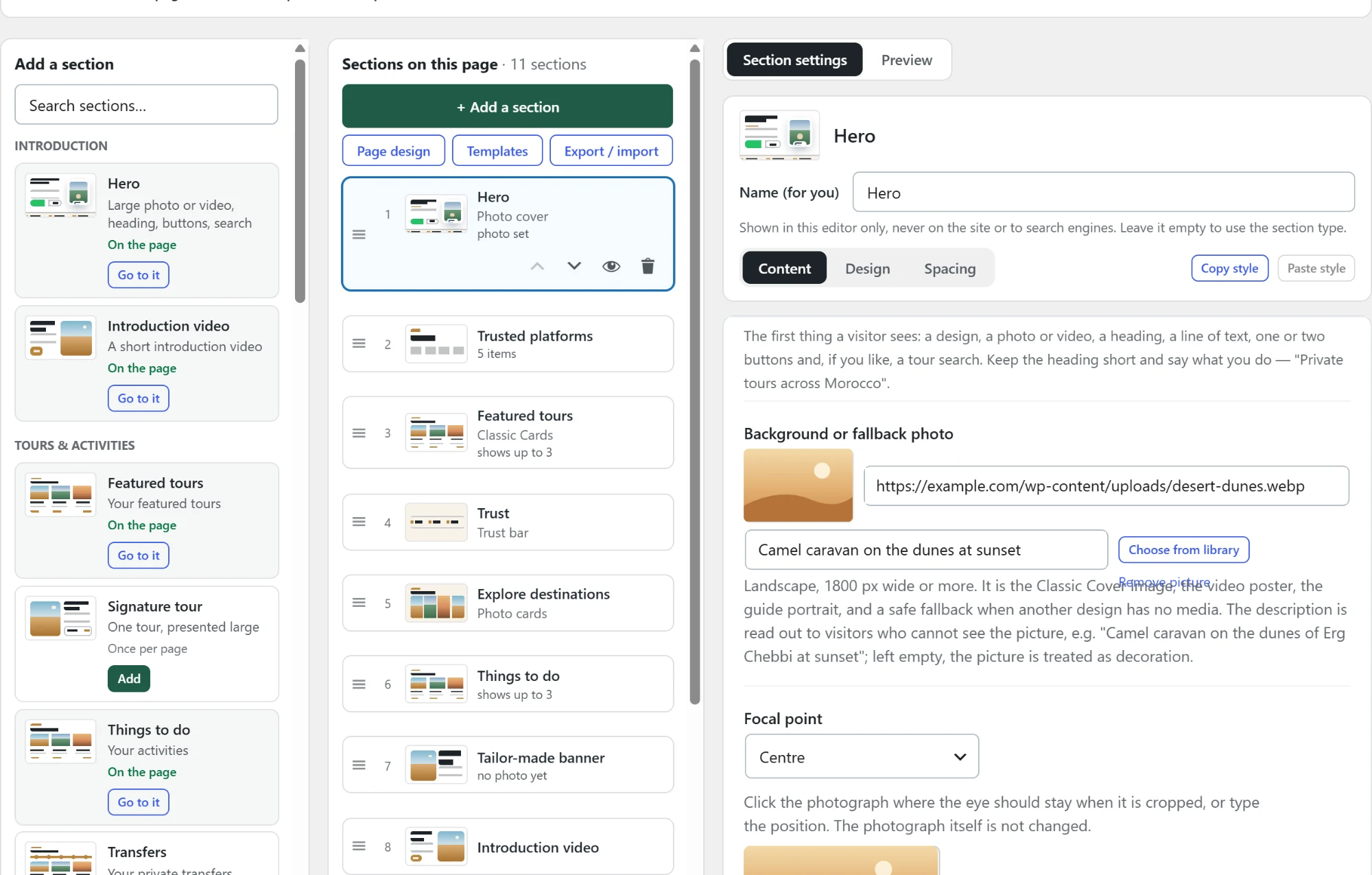
Tripvance, Site pages, Homepage: pick a preset, switch sections on, preview, then set it as the site’s front page.
Video tutorials
The "How to use Tripvance" series: eight short videos, from installation to the first booking.

Guides by topic
Each guide opens in one click. The search above filters this list and the technical questions.
Installation and updates
From the WordPress dashboard, like any plugin from the official repository.
- Plugins, Add New, search for “Tripvance”, Install then Activate. Requirements: WordPress 6.3 and PHP 7.4 at least.
- Activation creates the tables and capabilities; no tour, page or demo content is added.
- Updates come through WordPress.org, in Dashboard, Updates. Your settings and tours are kept.
- Deactivating the plugin deletes nothing: tours, bookings and settings stay in the database.
Setup guide and starter kit
The built-in guide reads your site and only offers what is missing.
- Tripvance, Settings, Setup guide: tours, homepage and its preset, page design, booking. Nothing is created without a click from you.
- The starter kit creates tour types, durations, sample (Moroccan) destinations, a Destinations page, a Tour Types page and two landing pages. It is removed in one click without touching your content.
- Demo content (tours, activities and destinations marked “demo”) is removed the same way.
- The guide can be restarted at any time from Settings.
Tours: page, itinerary and layouts
Each section is filled in a dedicated field; an empty section never appears.
- Page: gallery, short description, highlights, itinerary, included and not included, meeting point, questions and answers.
- The itinerary is written one card per day (Add a day). A multi-day trip is shown as numbered days, a one-day excursion as a timeline, automatically. The format can be forced per tour.
- Eight layouts: Salma (booking), Sara (product page), Atlas (multi-day, Clean and Zellige styles), Sahara (photo first, Cinematic, Immersive and Mosaic galleries), Medina (compact), Qamar (luxury), Noir (dark luxury), Classic. A site default, a choice per tour.
- Filed by destination, type, departure city, length and category, each with its listing page and filters.
- Tour cards can show a strip of thumbnails: the visitor browses the gallery without opening the page (Settings, Tour listings).
Group rates and "from" price
One price per group size, and the lowest is shown as the headline price.
- On each tour, add rates per number of travellers (Group Rates). The lowest valid rate becomes the “from” price on cards and on the page.
- A tour can also have a fixed price, or be “on request”: no price is then published.
- The currency is set in each tour’s price fields.
- Under the number of travellers, the page shows the required minimum.
Activities
Full pages, with their price and form, for visits and short experiences.
- Each activity has its page, its price and takes requests through the same system as tours.
- The /activities/ listing and a page per activity type are switched on in Settings (activity archive).
- The [wptm_activities] shortcode and the Activities block place the grid on any page; [wptm_tours] and the Tours block do the same for tours.
Transfers, vehicle types and fleet
Airport, hotel, city to city: routes with a price per vehicle.
- A transfer describes its route, pickup and drop-off, estimated duration, operating hours, minimum booking notice, the stops along the way (with description and stop time), its questions and its photos. Address: /transfers/{slug}/.
- Vehicle Types (for example “Comfort minivan or similar”) are reusable: class, capacity, luggage, features, photo. A round trip is two journeys in the same type. No automatic distance-based pricing.
- The visitor picks the vehicle, date and time, number of passengers and bags, and can add a flight number. Capacity is checked in the browser and on the server.
- The Fleet (Operations) holds your real vehicles, linked to a type; assigning a vehicle that is too small is refused. The fleet is optional.
- The /transfers/ list and the homepage Transfers section offer three layouts: Classic Cards, Route Focus, Premium Transport.
Bookings: requests, statuses, capacity
A request-and-confirmation system: you stay in control of every booking.
- The form asks for a date, a number of travellers and a way to reach the traveller. By default it is a request; no payment is processed by the plugin.
- Requests are managed in the Bookings screen: statuses, internal notes, message thread, quotes.
- Capacity: turn on seat control so seats are held while a request is open; two simultaneous requests cannot take the same last seat.
- The language the traveller was reading is recorded: confirmation, voucher and reminder are written in that language.
Documents: quote, confirmation, invoice, Guest Pass
Generated as PDFs from the booking, with the details you entered.
- From a booking, preview then issue the document you need: quote, confirmation, invoice, Guest Pass.
- The Guest Pass serves as a voucher on departure day; it carries the reference, the travellers and the practical details.
- Documents are written in the booking’s language.
Operations: the day's dashboard
What awaits an answer, what departs today and tomorrow, who is assigned.
- Requests to answer, follow-ups due, today’s and tomorrow’s departures.
- For each departure: customer, team, payment status. Assignments (guide, driver, vehicle) are saved per departure.
- The Fleet lives in Operations; it is required neither for tours nor for transfers.
Homepage and car hire page
Pages assembled from your tours, with sections to switch on and order.
- Tripvance, Site pages, Homepage: image hero, muted video, spotlight, floating images or animated gradient; tour search (five designs); featured tours, destinations, types, signature tour, activities, trust, articles, call to action. An empty section is not printed. Setting the page as the site’s front page is a separate button.
- Two site experiences (Settings, Website experience): Standard (catalogue with prices and form) or Luxury Editorial (travel magazine, no price card, private enquiry). The content stays the same.
- Tours, Car hire: fleet with filter, chauffeur services, route and price table, steps, trust, gallery, testimonials, questions. The request form comes from your form plugin (paste its shortcode); the section answers to #wptm-cars-request.
- Tailor-made trips: Tripvance, Tailor-Made Requests, “Create Trip Builder Page” creates the step-by-step wizard; [tripvance_trip_builder] shortcode and block available. Requests get a TMR reference and can become a draft tour.
Multilingual with Polylang
Every content exists per language and the switcher sends the visitor to the right translation.
- French, Spanish and Arabic are included (right-to-left display for Arabic), English by default, other languages via translate.wordpress.org.
- Tours, activities and every taxonomy are translatable. Generated pages get their language and are linked to their translations; a generated page is written in its own language.
- “Addresses per language” (Settings) turns /fr/tours/ into /fr/circuits/, with redirects from the old addresses. Switched off, no address changes.
- A site that generated its pages before adding a language can put them right from the settings screen (title, starting wording and address per language); a page edited by hand is left alone.
- The optional language switcher goes into the theme’s menus (header, mobile menu, footer) or a shortcode: no flags, no external assets. Polylang keeps the hreflang tags.
- Wording you type yourself (homepage, car hire, default inclusions) is translated under Languages, String translations.
SEO and structured data
Tripvance leaves SEO to your SEO plugin and provides accurate Product data on the pages.
- No canonical tag, meta description, Open Graph or site-wide schema: that is the job of Rank Math, Yoast or equivalent.
- Product structured data on eligible tours and activities: a price only when it is the one shown and bookable (fixed price or lowest group rate), a rating only from the tour’s approved reviews. Nothing on the home, archives, FAQs or private views. Setting: Tripvance, Settings, Search result product data.
- With Rank Math, Tripvance plugs into its graph so as not to create a second Product.
- Stars in Google: turn on reviews, let travellers rate, keep the option on. Google decides whether to show them.
- Taxonomy archives stay indexable; empty archives become noindex and leave the sitemap.
Import from WooCommerce
Your products become tours, after a dry run that announces everything.
- Tripvance, Tools, WooCommerce import.
- Run the dry run first: it lists exactly what would be created without creating anything.
- Then run the real import. The products stay in WooCommerce.
Privacy and cookies
An optional consent banner, by script category.
- Categories: Necessary, Analytics, Marketing, Preferences. The scripts you place in the banner wait for the visitor’s consent for their category.
- Off by default. It helps collect and honour consent; it does not by itself make a site compliant.
Troubleshooting
Answers to the most frequent blockers.
- Numbered days on a one-day excursion: check number of days, nights, multi-day length and overnight on a stop, or force “Single day / Timeline”.
- Plugin page returning 404: Settings, Permalinks, Save; then clear the cache.
- Broken layout in a theme: Tripvance frames its own pages and inherits the typography; check that no theme rule forces a width on .wptm-*.
- Reading the CSS source: the readable files sit beside the minified ones; SCRIPT_DEBUG set to true serves them directly. A minified file older than its source is never served.
- Nothing shows on the homepage: a section with no content is not printed; add tours or enable the starter kit.
No guide matches. Try another word, or write to us on WhatsApp.
Resources
WordPress.org page
Full description, screenshots, changelog and public support forum.
Support
Pro licence holders write directly on WhatsApp or by email and get a priority answer. Everyone else uses the WordPress.org forum.
Programme import
Have your tours in Word or PDF? We convert them into a Tripvance import file that creates ready-filled tours, activities or transfers.
Technical questions
My one-day excursion shows DAY 01, DAY 02…
On Automatic, a tour is shown as days only when it says it lasts more than one day: number of days, nights, multi-day length or an overnight on a stop. Check those four points, or force “Single day / Timeline” in the tour’s itinerary format.
How do I get review stars in Google?
Turn on reviews in the settings and keep “Search result product data” on. Once a tour has approved reviews, their average is added to the structured data. Google then decides whether to show them.
Can I use Polylang?
Yes. Tours, activities and taxonomies are declared translatable; generated pages get their language and are linked together. The “Addresses per language” option also translates the URLs (/fr/circuits/).
How do I import my WooCommerce products?
Tripvance, Tools, WooCommerce import: run the dry run first, which lists exactly what will be created without creating anything, then the real import.
The CSS files are minified, where is the source?
The readable files sit beside the minified ones (tour.css next to tour.min.css). With SCRIPT_DEBUG set to true in wp-config.php, the readable files are served.
A plugin page returns 404
Open Settings, Permalinks and click Save: WordPress rewrites its URL rules. If you use a caching plugin, clear it afterwards.
Stuck somewhere?
Write to us with your site's address and a screenshot. We reply quickly, and first to Pro licence holders.